How to Record a Voice Memo From the iPhone Lock Screen (2026): Every Method, Step by Step
Record a voice memo from the iPhone Lock Screen with a corner control, the Action Button, Control Center or Siri, plus what to do so the recording becomes a task.
To record a voice memo from the iPhone Lock Screen, replace one of the two bottom-corner controls with Voice Memo (iOS 18 or later) and press and hold it, set the Action Button to Voice Memo, or add the Voice Memos control to Control Center. Each method saves an audio file. Codot's Talk to Codot control sits in the same Lock Screen corner and turns what you say into tasks, events and notes.
Disclosure: Codot is our product. Apple steps below are from Apple's iPhone User Guide, which now defaults to iOS 27, checked November 10, 2026. Codot prices are from codot.ai on the same date.
TL;DR:
- The fastest built-in route is a Lock Screen corner control. On iOS 18 or later you can swap the flashlight or camera button for Voice Memo, then press and hold it to record.
- The Action Button and Control Center also start Voice Memos, but sources disagree on whether they record while the phone is still locked. Apple's guide doesn't say, so test yours before you rely on it.
- Every method gives you an audio file. A memo that says "invoice Dana Friday" stays a recording until you play it back and type it somewhere.
- Codot's Talk to Codot control goes in the same Lock Screen corner and turns the sentence into a task, an event or a note, several at once if the sentence holds several things.
At a glance
| Method | What you need | How you start it | Records while locked? | What you end up with | Source |
|---|---|---|---|---|---|
| Lock Screen control: Voice Memo | iOS 18 or later | Press and hold the corner button | Yes, screen awake (iDownloadBlog); Apple doesn't say | Audio file in Voice Memos | Apple, iDownloadBlog |
| Action Button: Voice Memo | An iPhone with an Action Button | Press and hold the button | Reports conflict; Apple doesn't say | Audio file in Voice Memos | Apple |
| Control Center: Voice Memos | Control Center allowed on the Lock Screen | Swipe down from the top right, tap the control | Reports conflict; Apple doesn't say | Audio file in Voice Memos | Apple |
| Siri | Siri turned on | Say "record a voice memo" | Not documented by Apple | Audio file in Voice Memos | iDownloadBlog |
| Third-party widget (Voice Widget Memo) | iOS 18 or later | Tap the widget | It opens the app first | Recording in that app | App Store |
| Codot: Talk to Codot | Codot 1.5.4 or later | Press and hold the corner control, or tap the widget | Starts from the Lock Screen | Tasks, events, notes, contact details | App Store |
You're at the front door with a grocery bag in one hand, and three things come to mind: call the plumber, the client wants the logo in navy, the passport renewal is due before March. By the time you've unlocked the phone and found an app, one of the three is gone. The methods below cut that delay. The last section covers what most guides skip, which is what happens to the recording afterwards.
Method 1: How do you put Voice Memo on the iPhone Lock Screen?
You replace one of the two buttons at the bottom of the Lock Screen with the Voice Memo control. Apple added swappable Lock Screen controls in iOS 18; its iOS 18 guide says you can "swap out the controls at the bottom of the Lock Screen for other options" (Apple, iOS 18 guide).
- Unlock your iPhone, then touch and hold the Lock Screen until Customize appears, and tap it.
- Tap the Lock Screen (not the Home Screen) preview.
- Tap Remove on the flashlight or camera button. Apple's iOS 27 guide puts it as "Tap Remove] on one of the controls, then tap [Add Quick Action]" ([Apple).
- Search the controls gallery for Voice Memo and tap it.
- Tap Done.
To record, press and hold the new button. iDownloadBlog says "It works even when your iPhone is locked," with the caveat that the screen has to be awake so you can touch it (iDownloadBlog, January 2026). Apple's own Lock Screen pages describe the controls gallery but don't list Voice Memo by name or say whether it records before Face ID, so give it one test with the phone locked.
If you use several Lock Screens (one per Focus, for example), set the control on each.
Method 2: How do you set the Action Button to record a voice memo?
Apple lists Voice Memo as a built-in Action Button option: "Voice Memo: Record personal notes, musical ideas, and more" (Apple).
- Open Settings and tap Action Button.
- Swipe through the actions until you reach Voice Memo.
- Leave Settings. To record, "press and hold the Action button" (same Apple page). Press and hold again to stop.
This is the one method you can use without looking at the screen. Whether it works while locked is where sources split. iDownloadBlog says "It works even when your iPhone is locked, and the screen is not awake." On the other side, a user on the AppleVis forum reported in 2026 that the built-in Voice Memo action did not record while the phone was locked and only worked after unlocking, and another suggested a Shortcuts action instead (AppleVis forum). Apple's Action Button page doesn't address the locked case. Behavior seems to depend on the model and settings, so test it locked, with the screen off, before you count on it in the car.
Method 3: How do you record from Control Center on the Lock Screen?
You add the Voice Memos control to Control Center, then open Control Center from the Lock Screen. Apple's Lock Screen guide lists "Open Control Center" among the things you can do "even while iPhone is locked" (Apple).
- Swipe down from the top-right corner to open Control Center.
- Tap the + in the top-left corner, then tap Add a Control at the bottom. Apple's wording: "Tap Add a Control at the bottom of the screen to open the controls gallery, then tap a control to add it to Control Center" (Apple).
- Pick Voice Memos.
- Make sure Control Center is allowed while locked: go to Settings > Face ID & Passcode and "Turn on options below Allow Access When Locked" (Apple).
iDownloadBlog says "This also works when your device is locked." An Apple Community thread from an iOS 18 user describes the opposite, with the Voice Memos control asking for an unlock first (Apple Community). Same advice as above: one locked test settles it for your phone.
Your ideas shouldn't wait for a keyboard. Just say it — Codot handles the rest.
Method 4: Can you ask Siri to record a voice memo?
Possibly, though Apple doesn't document it. iDownloadBlog suggests asking Siri to "record a voice memo" and warns that "start an audio recording" may not always work. We couldn't find an Apple support page that says Siri on iPhone can start a Voice Memos recording. A December 2025 post on Apple's developer forums reports that asking Siri through AirPods started a recording, but Siri couldn't stop it and the user had to take the phone out (Apple Developer Forums). Treat Siri as a backup, and see our guide to replacing Siri with ChatGPT or Gemini if Siri keeps misunderstanding you.
Method 5: Is there a voice note widget for the iPhone Lock Screen?
Apple doesn't make a Voice Memos Lock Screen widget, so the widgets come from third-party apps, and most open the app before recording.
- Voice Widget Memo (free, iOS 18 or later) offers square and single-line Lock Screen widgets. Its App Store page says "Tapping the added widget will launch the app" (App Store).
- Whisper Memos says that once its widget is on your Lock Screen, you tap it and the app "opens directly into recording mode" (Whisper Memos). Its page doesn't say whether you have to unlock first.
Will a voice memo keep recording when the phone is locked?
Apple's Voice Memos guide doesn't mention locking the phone. The stop condition it does list is audio from another app: "If the other app starts playing audio, Voice Memos stops recording" (Apple). While recording, "an orange dot appears to indicate your microphone is in use," and on supported models the recording shows in the Dynamic Island. So before a long recording, start it, lock the phone, wait 30 seconds, and check that the memo has the full length.
What's the fastest way to record a voice note from the iPhone lock screen?
Use Codot when what you say on the Lock Screen is something you need to act on later, such as a call, a deadline or a detail about a client, and you want it saved as a task, event or note instead of an audio file.
Record "call the plumber tomorrow at 9, the client wants the logo in navy, renew the passport before March" in Voice Memos and you get one short audio file. Nothing reminds you at 9, and someone has to play it back and type three things into three apps.
Codot is a voice AI assistant for iPhone, and Talk to Codot is its Lock Screen entry. It comes as a round Lock Screen widget, a single-line widget above the clock, and a control you can put in Control Center, on a bottom corner of the Lock Screen, or on the Action Button. The control's description in the app is "One tap to start talking to Codot." Codot's 1.5.4 release notes say you can add it "to a bottom corner — press and hold, just like Camera" (App Store).
Codot keeps your tasks, calendar, notes, contacts, habits and expenses in one app, so one sentence can create or change several things at once. That plumber sentence becomes a task with a 9 a.m. time, a note on the client, and a passport task due before March.
To set it up:
- Install Codot from the App Store and allow microphone access.
- Touch and hold the Lock Screen, tap Customize, then Remove on one corner control and Add Quick Action.
- Choose Talk to Codot. (You can also add it as a Lock Screen widget, or assign it to the Action Button in Settings.)
- Press and hold the corner button and say what you need in one sentence, with times if you have them.
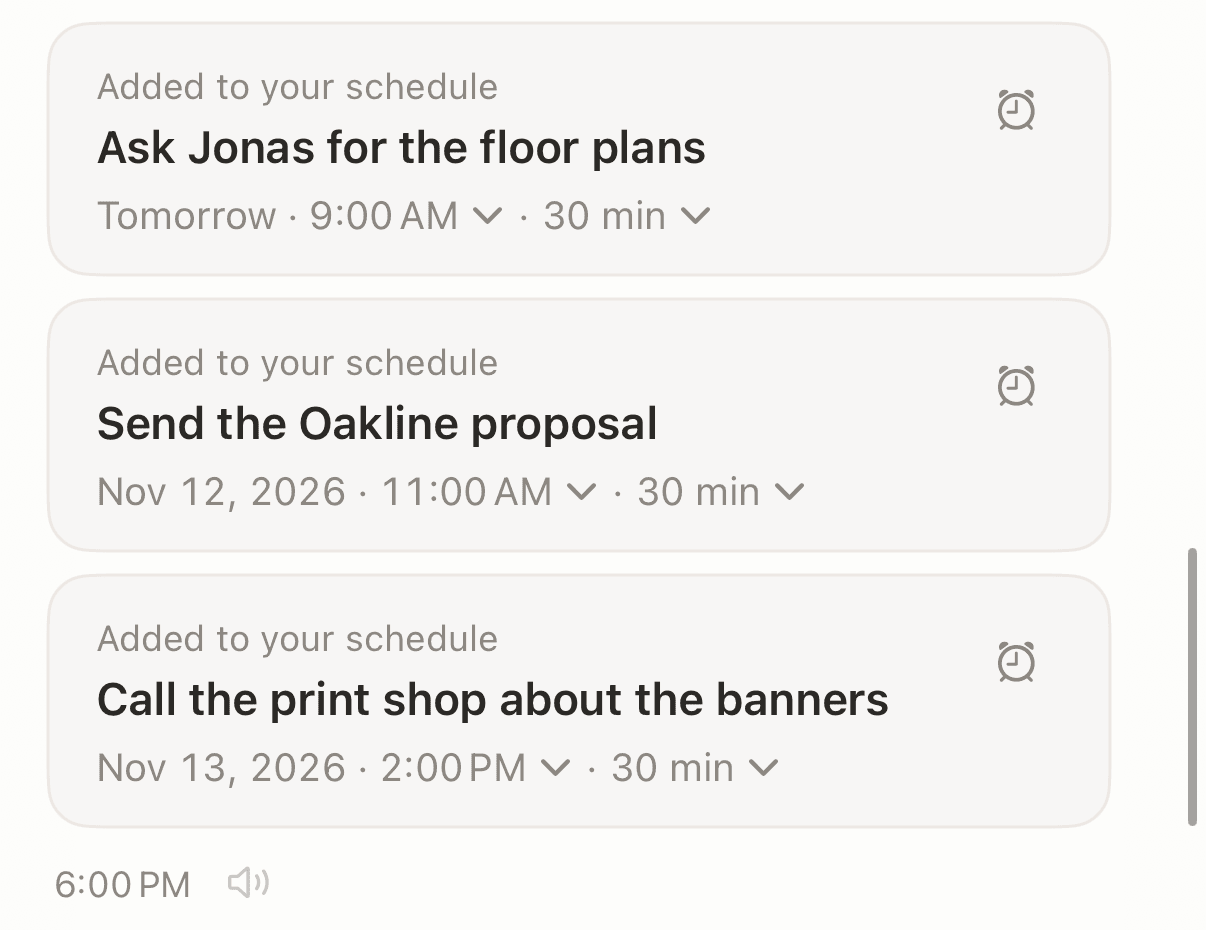
Tasks, events, notes, contacts and voice input are free. A reminder that arrives at the time you said, and repeating reminders, are part of Codot Max ($12.99 a month or $99.99 a year in the US App Store, with 20x the free plan's usage). Every new account gets a 7-day Max trial that returns to the free plan without charging.

Our pick is Voice Memo in the left corner and Talk to Codot in the right. A melody or an interview you want to replay goes to Voice Memos; anything with a name, a time or a "remind me" goes to Codot, which keeps the result and not the audio. If you want today's list on the Lock Screen too, our guide to putting a to-do list on your iPhone Lock Screen covers the widgets, and our voice to-do list app comparison looks at the other apps that turn speech into tasks.
FAQ
Will a voice memo record when the iPhone is locked?
Voice Memos can be started from the Lock Screen with the Voice Memo corner control on iOS 18 or later, according to iDownloadBlog. Apple's Voice Memos guide doesn't say whether locking stops a recording in progress, so record a 30-second test and check its length.
Is there a voice memo widget for the iPhone Lock Screen?
Apple offers a Voice Memo control for the bottom of the Lock Screen and for Control Center, not a widget. Third-party apps such as Voice Widget Memo and Whisper Memos add Lock Screen widgets, and Voice Widget Memo's widget opens the app when tapped.
Can Siri record a voice memo on iPhone?
iDownloadBlog recommends saying "record a voice memo" to Siri, but Apple has no support page confirming it. One Apple developer forum post reports that Siri could start a recording through AirPods but couldn't stop it.
How is Codot different from Voice Memos on the Lock Screen?
Voice Memos saves your voice as an audio file. Codot's Talk to Codot control starts from the same Lock Screen corner and turns the sentence into tasks, events, notes or contact details, several from one sentence, with timed reminders on Codot Max.
If the things you say into your phone keep ending up as recordings nobody plays back, put Talk to Codot on your Lock Screen. Get Codot on the App Store.
Productivity & Tools Desk
This article was created with AI assistance and reviewed by our editorial team.Learn about our content process.